Recurring Snapshot
Recurring snapshots allow you to automate the backup process of your cloud volumes by scheduling snapshots at fixed intervals—hourly, daily, weekly, or monthly. This ensures that your data is consistently protected without manual intervention, reducing the risk of data loss and simplifying disaster recovery.
This section walks you through the steps to configure recurring snapshots for your volumes using the Cloud Management Portal.
1. Accessing the Volume Section :
-
Log in to your Cloud Management Portal using your authorized credentials.
-
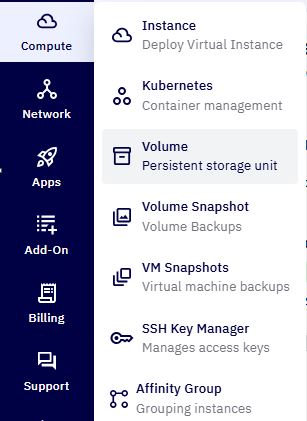
From the left navigation pane, go to:
Compute → Volume -
A list of all root and data volumes associated with your cloud account will be displayed.
2. Select the Target Volume :
-
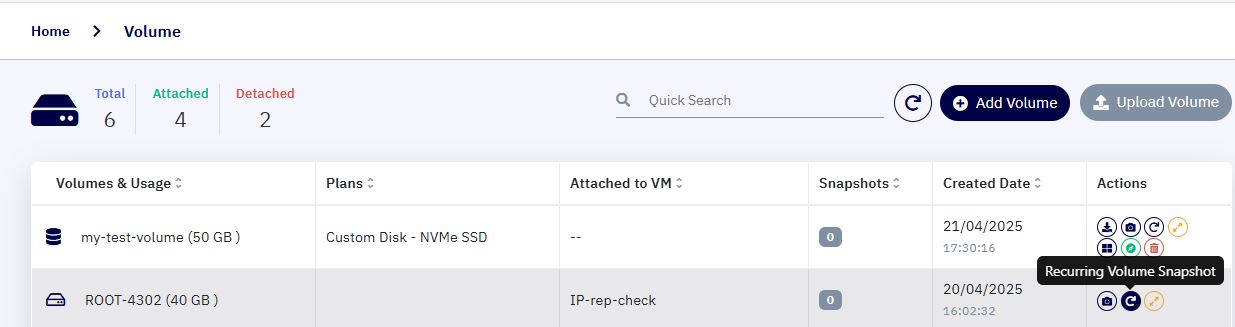
Identify the volume for which you wish to enable recurring snapshots.
-
From the Actions column of the respective volume, click the Recurring Snapshot icon.
3. Configure Snapshot Schedule :
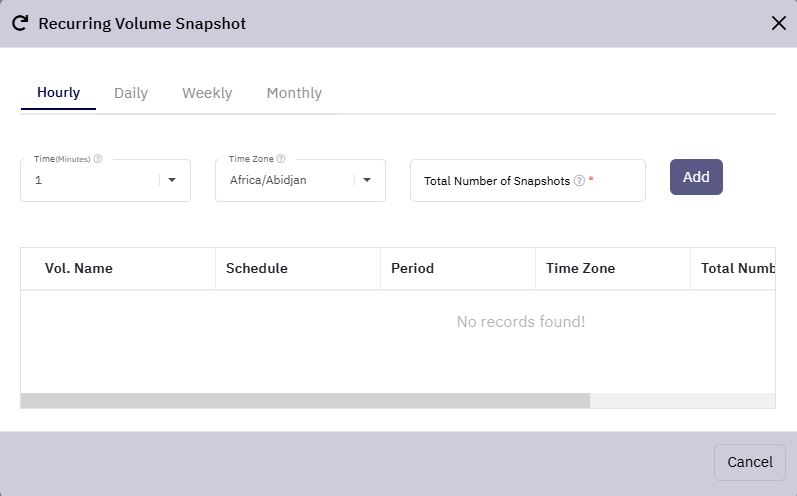
A popup window will appear, offering scheduling options via tabs for different frequencies
4. Hourly Snapshots :
-
Need to configure the below list of fields :
-
Time: Choose the time of day to take the snapshot.
-
Time Zone: Select the relevant timezone.
-
Retention: Define how many snapshots to retain.
-
-
Click Add to save the entry.
-
You can add multiple hourly schedules as needed.
5. Daily Snapshots :
-
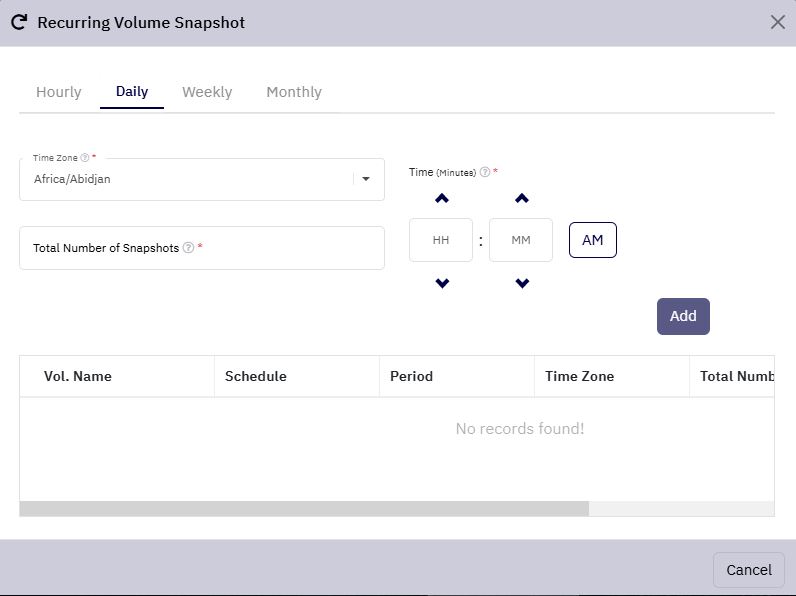
Need to configure the below list of fields :
-
Time Zone: Select the relevant timezone
-
Snapshot Time: Select the daily time for the snapshot.
-
Retention: Specify how many daily snapshots should be kept.
-
-
Click Add to save the entry.
-
You can add multiple hourly schedules as needed.
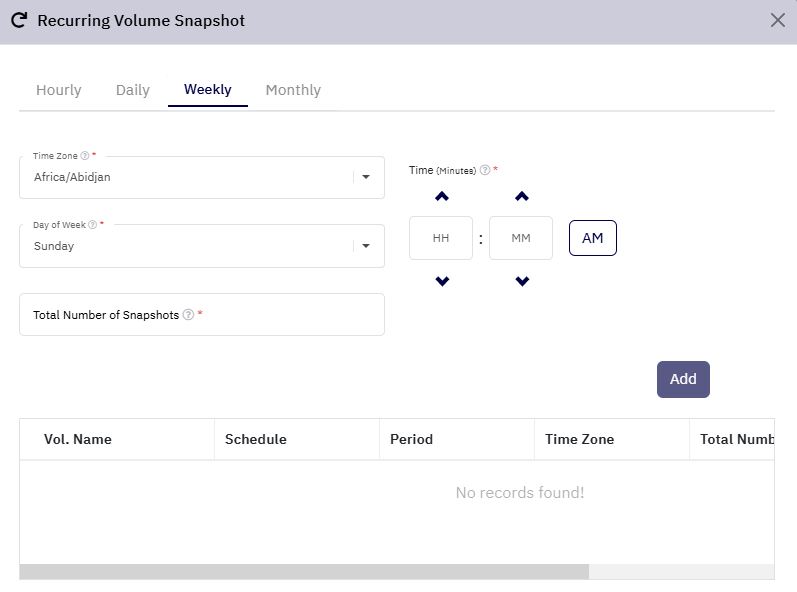
6. Weekly Snapshots :
-
Need to configure the below list of fields :
-
Time Zone: Select the relevant timezone
-
Day of the Week: (e.g., Monday, Friday)
-
Snapshot Time: Select the daily time for the snapshot.
-
Retention : Specify how many weekly snapshots should be kept.
-
-
Click Add to confirm the weekly recurring task.
-
Multiple weekly snapshots can be configured for different days and times.
7. Monthly Snapshots :
-
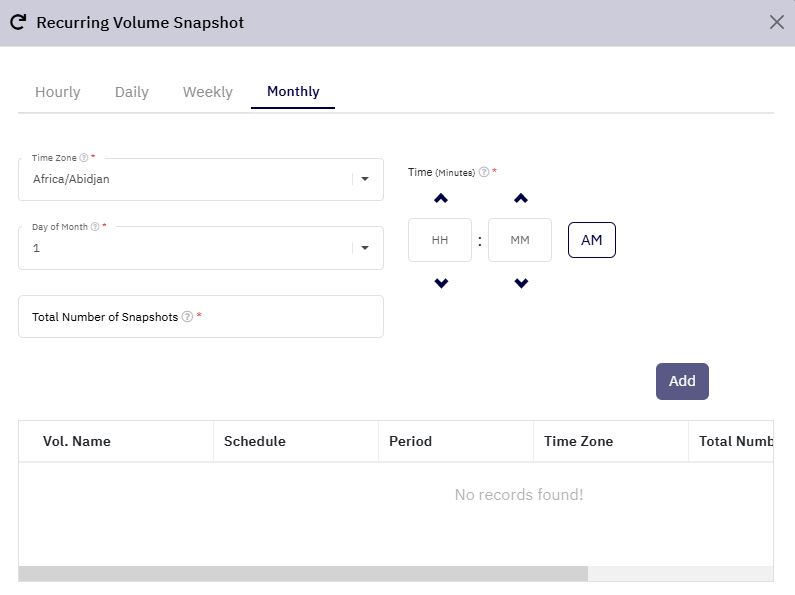
Need to configure the below list of fields :
-
Time Zone: Select the relevant timezone
-
Day of the Month: (e.g., 1st, 15th)
-
Snapshot Time: Select the daily time for the snapshot.
-
Retention : Specify how many weekly snapshots should be kept.
-
-
Click Add to schedule monthly snapshots.
-
Support for multiple entries is available here as well.
8. Confirmation & Automation :
Once you've configured your desired recurring snapshot schedule(s):
-
The system will automatically initiate snapshots according to your configuration.
-
No further manual action is required.
-
Snapshots will be stored and rotated based on your specified retention limits.