Create Template
In this section, you'll learn how to convert an existing volume into an OS Template using the Cloud Management Portal. This feature allows you to quickly reuse a configured operating system environment to launch new virtual machines (VMs) with consistency and minimal effort.
What is mean by an OS Template ?
An OS Template (Operating System Template) is a pre-configured image that contains a complete installation of an operating system along with its default system settings, utilities, and sometimes additional pre-installed software packages. It acts as a blueprint for creating new virtual machines (VMs) quickly and consistently in a cloud environment.
OS Templates simplify the deployment of new VMs by eliminating the need to manually install an operating system every time a new instance is provisioned. Instead, users can select an OS template from a list and launch a VM in just a few minutes.
This enables:
-
Faster provisioning of virtual machines.
-
Standardized configurations across teams and environments.
-
Consistency and repeatability, reducing errors.
-
Time and resource savings for both administrators and end-users.
Prerequisites
Before creating a template from a volume, please ensure:
-
The volume is detached from any VM
OR -
If attached, the VM is in a stopped state
Templates can be created from both root and data volumes, but the system ensures volume integrity by requiring one of the above conditions.
Before You Begin
Ensure that the volume you want to convert meets one of the following conditions:
-
It is detached from any virtual machine
-
It is attached to a VM that is in a stopped state
Both root and data volumes are eligible for template creation.
Template Creation
1. Accessing the Volume Section :
-
Log in to your Cloud Management Portal using your authorized credentials.
-
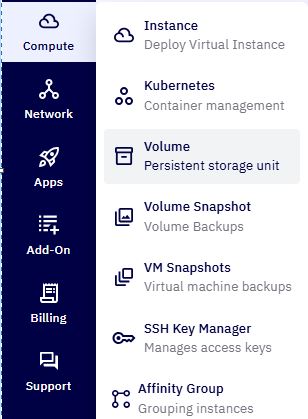
From the left navigation pane, go to:
Compute → Volume -
A list of all root and data volumes associated with your cloud account will be displayed.
2. Select a Volume :
- Choose the volume that you want to convert into a template. Ensure it meets the preconditions mentioned above.
3. Click Create Template :
- In the Actions column, click on the Create Template icon for the selected volume

4. Configure Template Details :
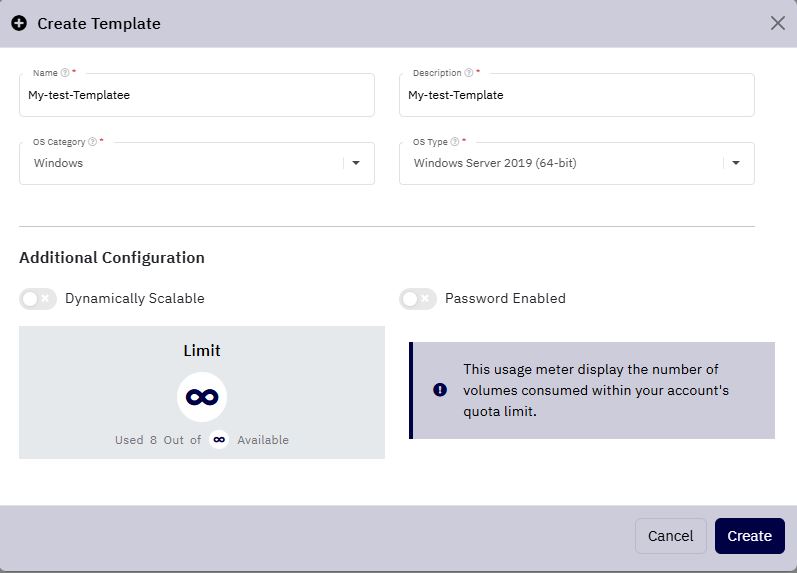
A new window will pop up. Provide the following details:
-
Template Name: Enter a name for the template
-
Description: Provide a short description
-
OS Category: Choose from Linux, Windows, etc.
-
OS Type: Select the specific OS type (e.g., Windows Server 2019)
5. Additional Settings :
-
Dynamically Scalable: Toggle on if your VM should support dynamic CPU & memory scaling
-
Password Enabled: Toggle on if the template should support the password reset feature
6. Review Quota :
- At the bottom of the form, your current quota and usage for template creation will be displayed. Make sure you have enough quota.
7. Create the Template :
- Click Create. The system will start the template creation process. The time taken will depend on the size of the volume.
8. Monitor Progress :
-
After clicking Create:
-
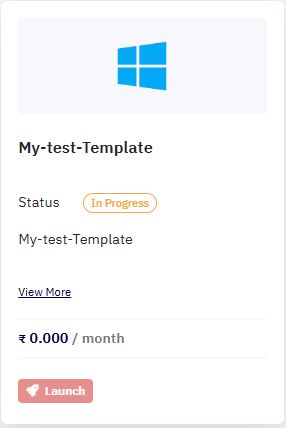
You will be redirected to My Images & ISO
-
Your new template will show up with an In Progress status
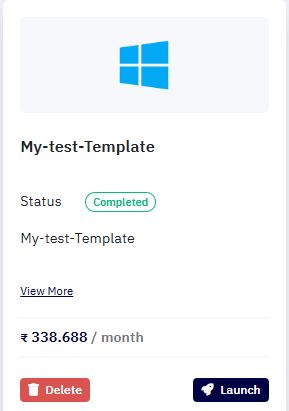
- Once completed, the status will change to Available
9. Launch VM from Template :
Once available:
- Click Launch next to the template to create a new VM based on it
10. View Pricing :
- In the Templates section, per GB pricing for the new template is displayed for transparency.