Resize Shared File Service (SFS)
This section provides step-by-step instructions on how to resize an existing Shared File Service (SFS) using the Cloud Management Portal. Resizing the SFS allows you to increase the allocated storage capacity to meet your growing data or application needs, without service interruption.
When Should You Resize Your SFS?
You may consider resizing your SFS when:
-
You are running out of available storage space on the shared file system.
-
You want to scale up in anticipation of increased application load.
-
You need to align the SFS with a larger disk offering or tier.
Note: The resize operation is non-disruptive and does not affect the availability of the SFS to attached VMs.
Prerequisites
Before proceeding, ensure the following:
-
You have an active SFS instance deployed under your cloud account.
-
You have sufficient quota or disk allocation remaining in your account for storage expansion.
-
You possess the required permissions to perform SFS resize operations.
Steps to Resize an SFS Service
1. Log in to the Cloud Management Portal
- Use your credentials to access the portal.
2. Navigate to the SFS Service Section
From the left-hand menu:
- Go to Add-on > SFS Service.
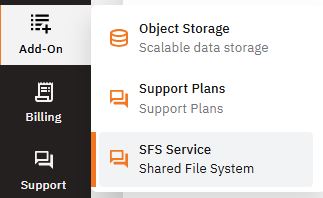
You will be presented with a list of all SFS services provisioned under your account.
3. Select the SFS to Resize
- Click on the name of the SFS you wish to modify.
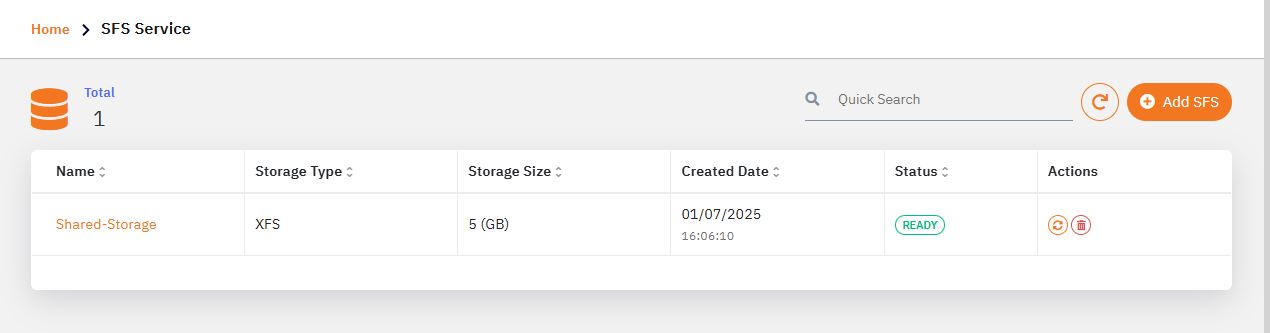
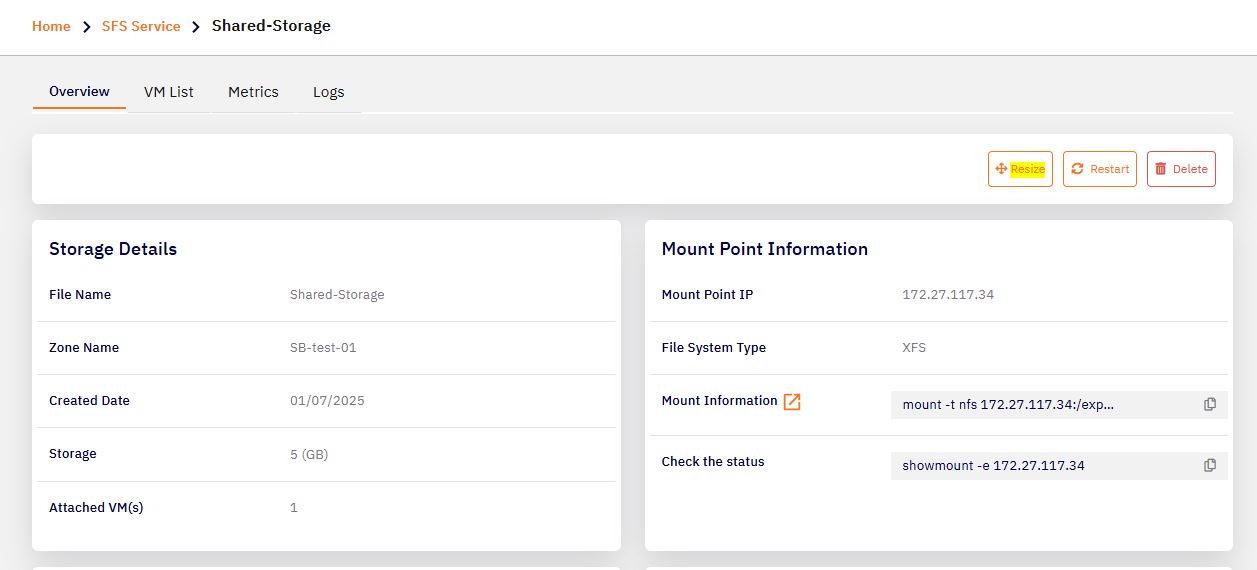
- This will take you to the SFS Dashboard, where detailed information about the selected SFS is displayed.
4. Initiate the Resize Action
- On the top-right corner of the SFS Dashboard, locate and click the “Resize” button (represented with a resize icon).
5. Enter New Storage Size
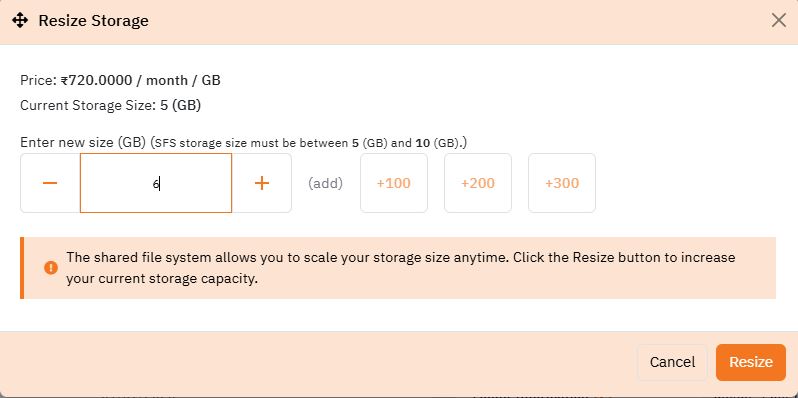
- A pop-up dialog will appear prompting you to specify the new desired size (in GB) for your SFS volume.
Note: The new size must be greater than the current size. Downgrading (shrinking) the storage size is not supported for SFS.
6. Confirm and Apply the Resize
- After entering the new storage size, click the “Resize” button.
The system will begin the resizing process. This operation typically completes within a few seconds.
7. Verify Updated Storage
Once the resize action is successful:
-
The updated storage size will immediately be reflected on the SFS Dashboard under the “Storage” field.
-
No reboot or reconfiguration is required on the VM side. The mounted file system remains active.