Notes
The Notes feature in the Auto scaling group interface enables users to add, manage, and reference important information related to a specific auto scaling group. This functionality is particularly useful for operational tracking, team collaboration, and auditing purposes.
1. Accessing the Native Autoscale Section :
-
Log in to your Cloud Management Portal using your authorized credentials.
-
From the left navigation pane, go to:
Compute → Native Autoscale
-
Here, you’ll find a list of all Autoscale groups available under your account.
2. Navigate to Notes Page :
-
Locate the desired Autoscale Group and click on it to open its summary page.
-
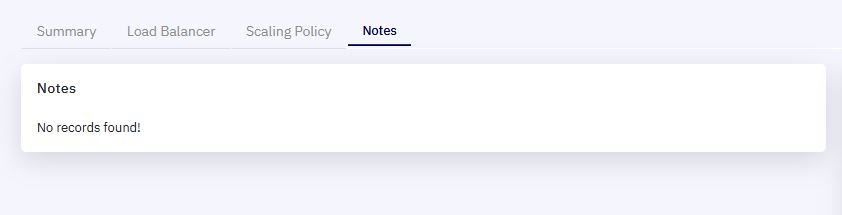
In the summary page, click on the Notes tab.
3. Notes Panel :
-
Displays all previously added notes associated with the auto scaling group.
-
Notes are listed chronologically with the most recent entries shown first.
-
If no notes have been added, the panel will display the message:
"No records found!"
4. Add Notes Panel :
-
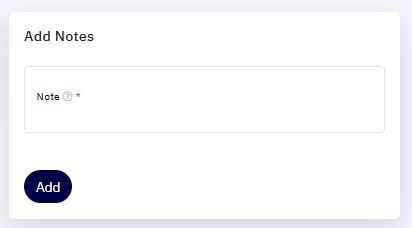
Allows users to input new notes.
-
The Note field is mandatory and accepts free-text input.
-
A tool-tip icon provides additional guidance on what to enter.
-
After writing the note, click the "Add" button to save it.
Once saved, the note appears in the Notes List Panel and is associated permanently with the VM instance until manually removed.