User Management
The User Management module in the Cloud Management Portal enables administrators to grant secure, role-based access to the Object Storage system. With this capability, you can delegate specific permissions—such as sharing, uploading, or downloading files—to sub-users within your organization, while maintaining strict control over what they can do and see.
This guide explains how to:
-
Create role privileges specific to object storage.
-
Assign those privileges to users.
-
Manage access controls and permissions from the Object Storage dashboard.
Overview of Object Storage Access Flow
To ensure secure and granular access to your Object Storage, follow this three-step process:
-
Create Role Privileges — Define what object storage actions users can perform.
-
Create Sub-Users — Assign object storage–specific roles to individual users.
-
Manage Access — Control user access through the Object Storage user management panel.
Creating Object Storage Role Privileges
1. Accessing the Role Privileges Section :
-
Log in to your Cloud Management Portal.
-
From the left-hand navigation bar, click on Company > Role Privileges.
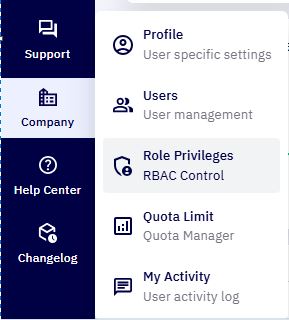
- You will be redirected to the Role Privileges page where role privilege details are displayed.
2. Create a Role Privilege :
-
Click Create New Role
-
Provide a Name (e.g.,
ShareUser_S3) and Description for the role. -
Navigate to the Object Storage tab within the role configuration.
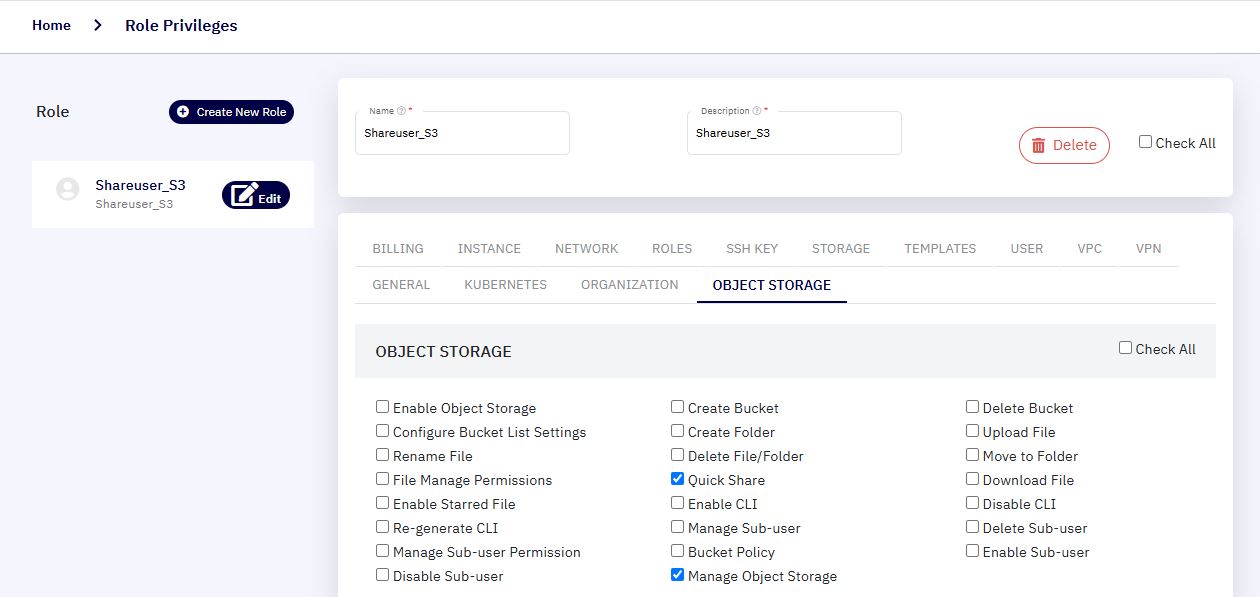
- Select the permissions you want to enable. Available options include:
| Permission | Description |
|---|---|
| Enable object storage | Grants access to object storage UI |
| Create/Delete bucket | Allows creation and removal of storage buckets |
| Configure bucket list settings | Enables directory listing toggles |
| Upload/Rename/Delete/Move files | Controls file manipulation |
| Create folder | Allows folder creation inside buckets |
| Manage permissions | Toggle file access between Public/Private |
| Quick share | Enables time-limited external file sharing |
| Enable/Disable/Regenerate CLI keys | CLI access lifecycle controls |
| Manage sub-user | Create or delete object storage users |
| Sub-user permission management | Assign permission scopes (read, write, full) |
| Bucket policy | Allows creation and application of bucket-level policies |
Important: Always include “Manage Object Storage” permission along with other specific privileges. This is a required base permission for any object storage role to function correctly.
Creating a User and Assigning a Role
1. Accessing the users Section :
- From the left-hand navigation bar, click on Company > Users.
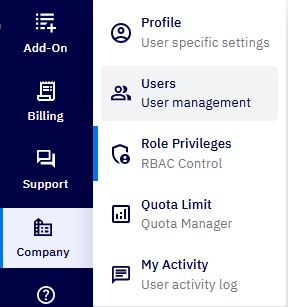
- You will be redirected to the Users page where your details are displayed.
2. Create a New User :
- Click Add User.
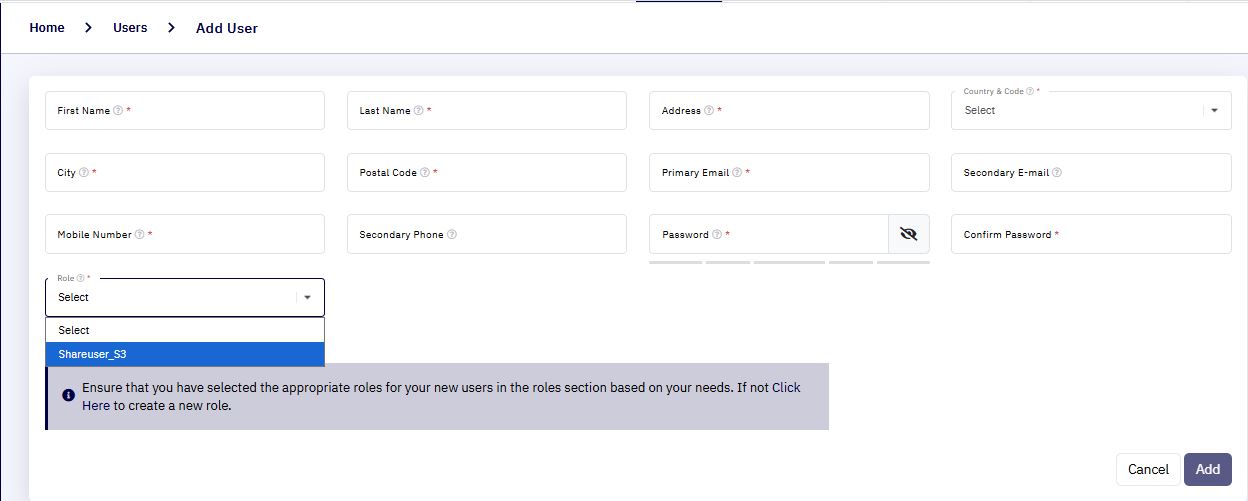
-
Enter all the required fields such as user’s full name, email, and password, etc..,
-
Under the Role dropdown, select the role you created earlier (e.g.,
ShareUser_S3). -
Click Add.
Note: For example, if your primary account (admin) is
[email protected], and you create a user[email protected], then[email protected]is the billing admin, and[email protected]becomes a sub-user.
Object Storage User Management
1. Accessing the user management Section:
-
From the cloud management portal,
-
Navigate to Add-on > Object Storage.
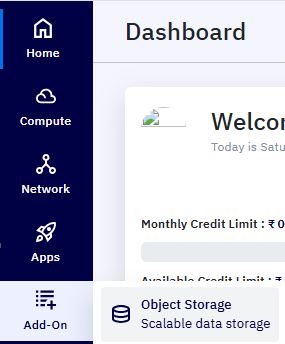
- In the Object Storage Dashboard, click the User Management Tab.
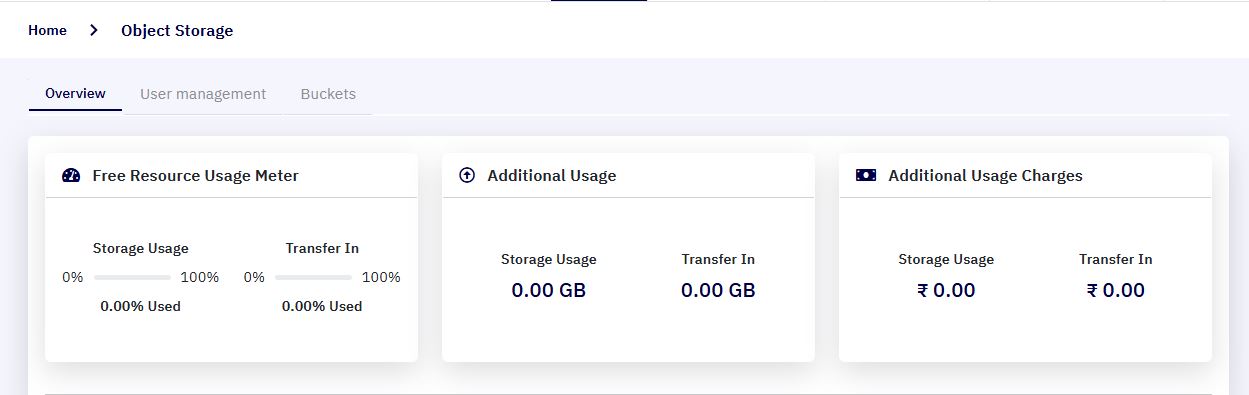
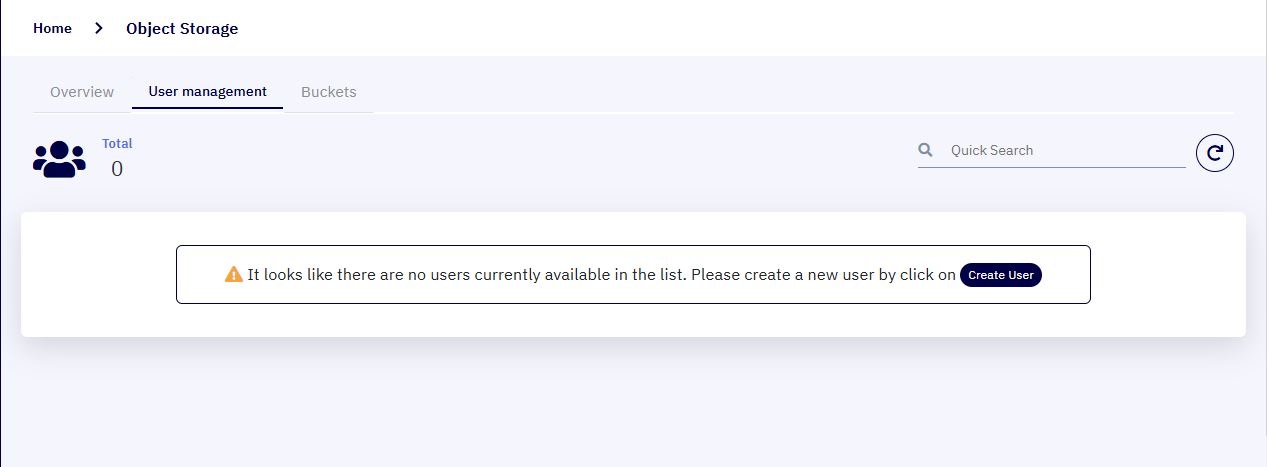
- The User Management tab allows you to view and control all users who have accessed Object Storage through the portal.
2. How Object Storage User Creation Works :
- Initially, the User Management tab will be empty.
-
Once a sub-user logs in and navigates to Object Storage, they will see a welcome screen.
-
After clicking “Continue Object Storage”, the system automatically:
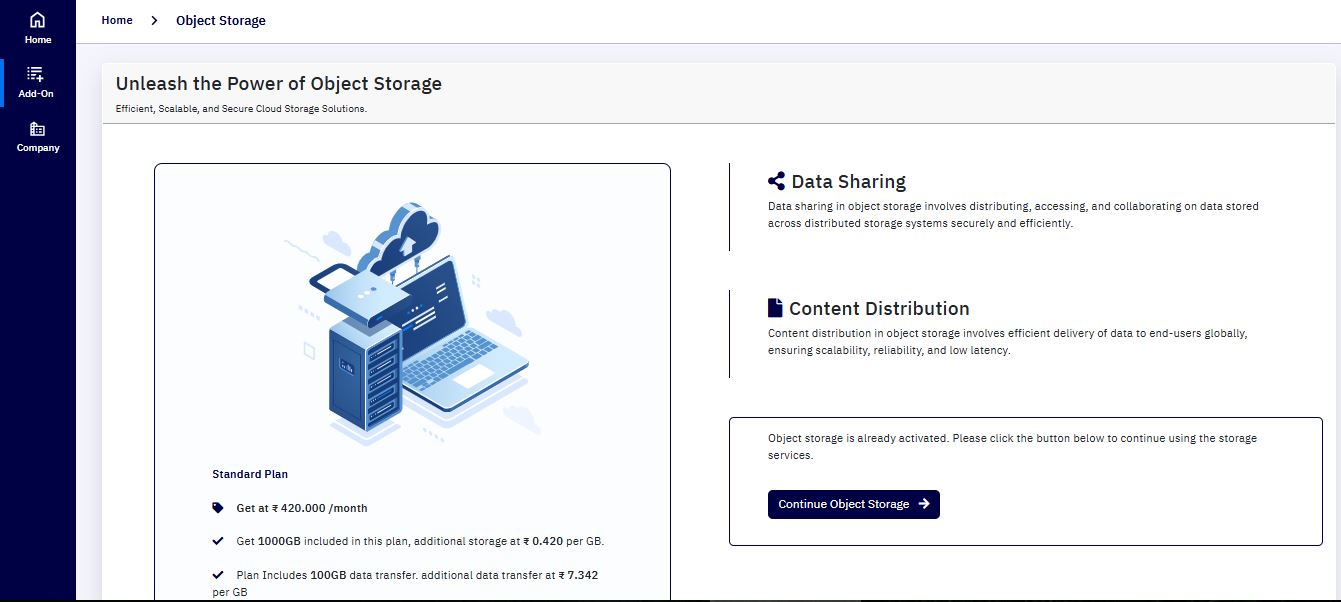
- Creates an Object Storage user.
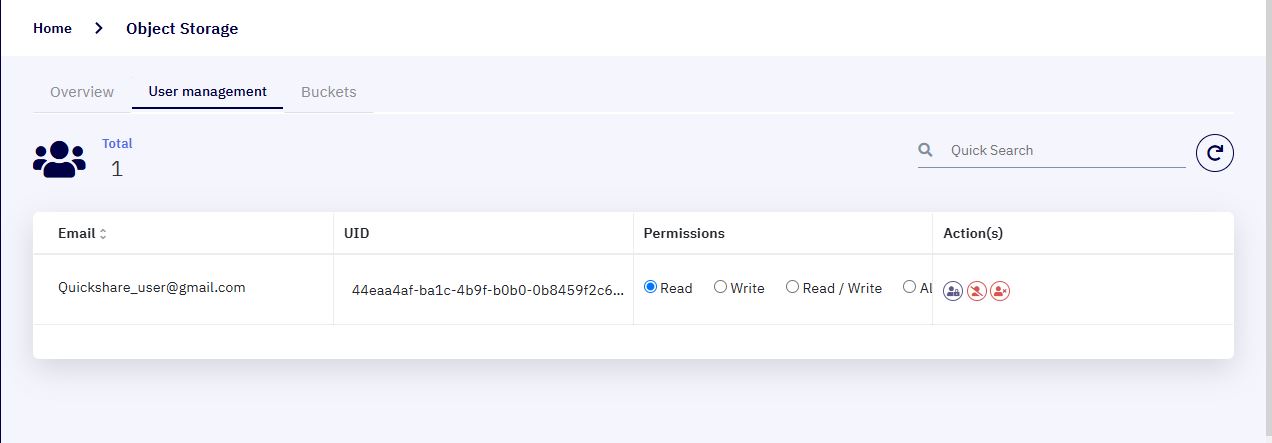
- Applies the permissions defined in the assigned role privilege.
Important: Object Storage maintains a separate user identity system underneath the portal. The sub-user created in the portal is mirrored within the Object Storage backend with mapped permissions.
3. Manage Sub-Users :
- From the User Management tab, the admin can:
| Action | Description |
|---|---|
| Enable/Disable | Temporarily grant or revoke Object Storage access |
| Set Permissions | Choose between Read, Write, or All for fine-grained access control |
| Delete User | Remove the Object Storage user (does not affect portal account) |
End-User Experience: Accessing Object Storage
Once a sub-user is created and permissions are applied:
-
The user logs in to the Cloud Management Portal.
-
Navigates to Add-on → Object Storage and clicks Continue Object Storage.
-
They gain access to the Object Storage Dashboard.
-
Based on the assigned role:
-
The Buckets tab lists all accessible buckets.
-
Within any bucket, only permitted actions will be enabled.
-
-
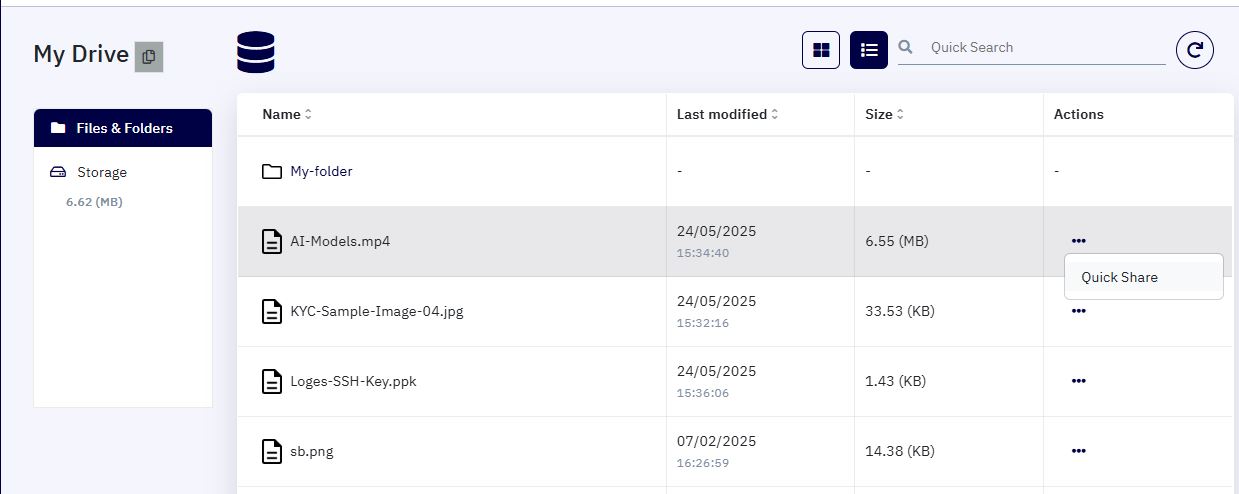
In our demo environment, a user is assigned a role that only allows
quick share. -
The file management menu will only show the Quick Share option.
-
Uploading, deleting, or renaming files will be restricted.
-
This ensures tight access control, tailored to the user's responsibilities.