Overview
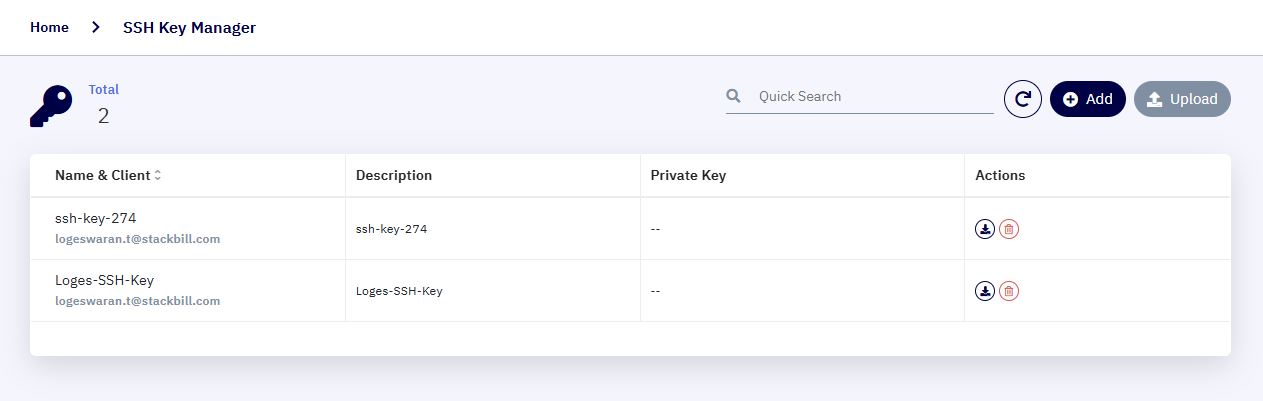
The SSH Key Manager section allows users to securely manage their SSH keys within the cloud management portal. SSH keys are used for authenticating and accessing Linux-based VMs without requiring password-based login. This feature enhances security and simplifies VM access.
Key Features
1. Centralized Key Management
-
View all SSH keys associated with your account in one place.
-
Easily identify keys by custom names and descriptions.
2. Add & Upload SSH Keys
-
Add: Manually create a new SSH key pair within the portal.
-
Upload: Import existing public keys from your local system.
3. Download & Delete
-
Download stored keys for secure backup or reuse.
-
Delete unused or compromised keys to maintain a secure environment.
4. Quick Search
- Instantly locate a specific SSH key using the built-in search feature.
Interface Components
-
Name & Client : Displays the unique key name and associated email ID (user identity).
-
Description : Optional user-defined note or identifier for the key.
-
Private Key : For security reasons, private key content is hidden.
-
Actions : Includes icons for download and delete actions.
Add a New SSH Key :
- Click the Add button to generate new SSH Key.
Upload an Existing SSH Key :
- Click the upload button to upload your existing key into the cloud portal.
Download SSH Key :
- Click the download icon in the Actions column to retrieve the key file.
Delete SSH Key :
- Click the delete icon to permanently remove the key.