Assign an Affinity Group
The Affinity Group Assignment feature allows users to apply specific placement policies to running virtual machines (VMs) to control where they are hosted within the cloud environment. This is crucial for ensuring optimized workload distribution, enhanced fault tolerance, or improved performance depending on your deployment strategy.
This guide provides a detailed, step-by-step process for assigning an affinity group to an existing VM through the Cloud Management Portal.
Important Note
- Your VM must be in a stopped state to attach a new affinity group.
1. Log In to the Cloud Management Portal :
-
Open your preferred browser and navigate to the Cloud Portal login page.
-
Enter your user credentials and sign in to access your cloud environment.
2. Navigate to the Instance Management Section :
-
From the dashboard, go to Compute → Instance.
-
You will be presented with a list of all active and stopped virtual machines available in your account.
3. Select the Target Virtual Machine :
-
Browse or search the list to identify the VM to which you want to assign an affinity group.
-
Click on the VM name to open its detailed summary page.
4. Access the Affinity Group Section :
-
On the VM’s summary page, scroll down to locate the Affinity Group section.
-
Here, you will find a list of existing affinity groups available for assignment.
5. Assign the Desired Affinity Group :
-
Select the appropriate Affinity Group from the list that best matches your placement policy requirements.
-
Click the Add button to attach the selected group to the VM.
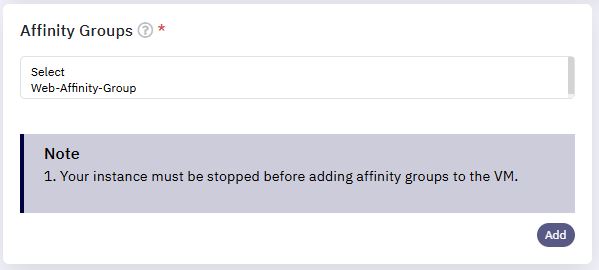
Note: The system will process the association request. Depending on the backend settings, VM redeployment may be required for some affinity rules to take full effect.