Accessing Windows Virtual Machines
Overview
This section provides detailed instructions on how to access a Windows Virtual Machine (VM) from both Windows and Linux environments using built-in and third-party tools.
Accessing Windows VM from a Windows Environment
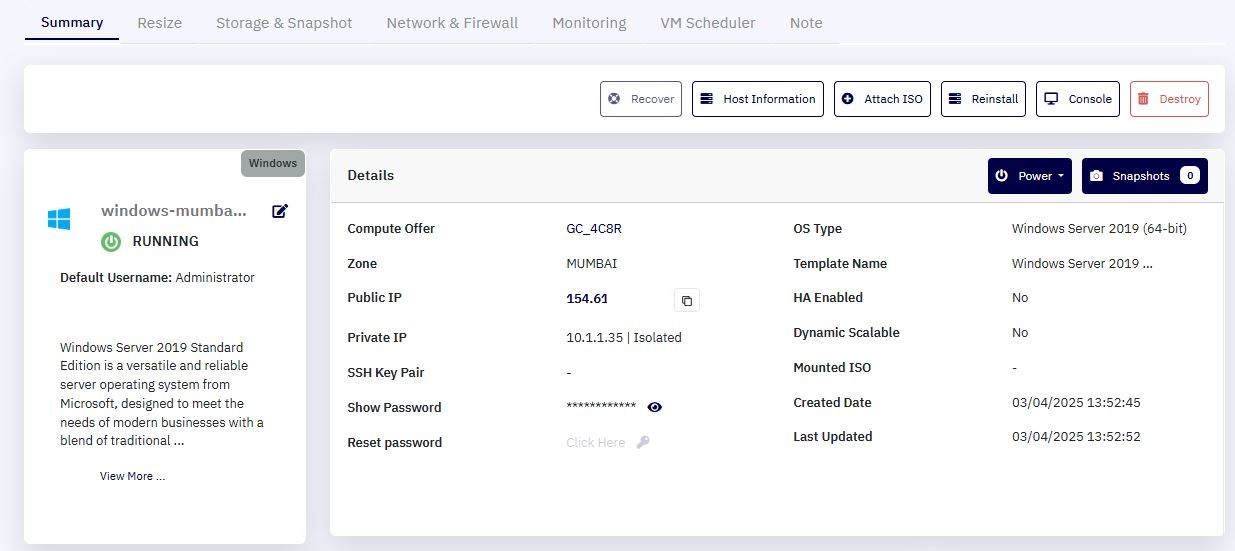
1. Retrieve the Public IP Address :
-
Navigate to the Instance Summary page in the Cloud Management Portal.
-
Copy the Public IP Address assigned to your Windows VM.
2. Open the Remote Desktop Client :
-
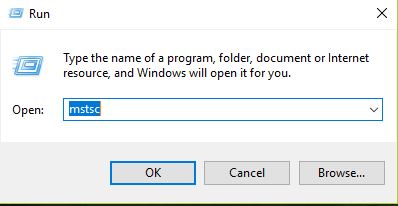
Press
**Ctrl + R**on your keyboard to open the Run prompt. -
Type
**mstsc**and press Enter.
3. Connect to the VM:
-
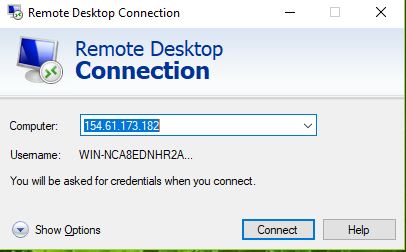
In the Remote Desktop Connection window, paste the copied Public IP Address.
-
Click Connect.
4. Authenticate to the VM :
- When prompted, enter the Username and Password of your Windows VM.
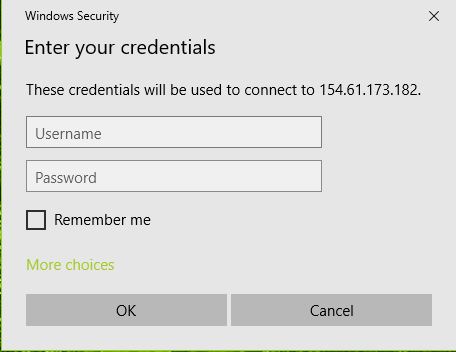
- These credentials can be found on the VM Details page in the Cloud Management Portal.
5. Establish the Connection :
-
Click OK to proceed.
-
Once authenticated, you will gain access to your Windows VM.
Accessing Windows VM from a Linux Environment
Linux users can access a Windows VM using RDP clients. Many Linux distributions come with an inbuilt remote desktop client. Alternatively, an open-source Remote Desktop Protocol (RDP) server such as xRDP can be used.
1. Verify RDP Client Installation :
-
Most Linux distributions come with built-in RDP clients.
- If needed, install xRDP from its official website: xRDP.
2. Retrieve the Public IP Address :
-
Navigate to the Instance Summary page in the Cloud Management Portal.
-
Copy the Public IP Address assigned to your Windows VM.
3. Connect to the VM :
- Open a terminal and type:
rdesktop <public-ip>
- Alternatively, if using Remmina (a popular RDP client for Linux), open the application and enter the Public IP Address.
4. Authenticate to the VM :
- When prompted, enter your Username and Password (available in the VM summary page).
5. Establish the Connection :
-
Click OK or press Enter to proceed.
-
Once authenticated, you will successfully access your Windows VM.
Troubleshooting
If you encounter issues while connecting:
-
Ensure the RDP port (3389) is open in your VM's firewall settings.
-
Verify that the Public IP Address is correctly assigned.
-
Restart the VM and try again.
-
If using Linux, ensure xRDP or an equivalent RDP client is installed correctly.