Accessing Shared File Service (SFS) from a Linux Virtual Machine
This section provides a step-by-step walkthrough for mounting and accessing your Scalable File System (SFS) from a Linux-based VM within the Cloud Management Portal.
Prerequisites
Before proceeding, ensure the following:
-
You have a Linux Virtual Machine running in your cloud environment.
-
You have an active SFS service already provisioned under your account.
1. Login to the Cloud Management Portal
-
Log in to your Cloud Management Portal using your authorized credentials.
-
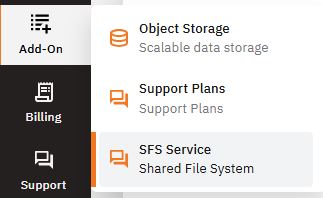
Navigate to the “Addon” section in the sidebar menu.
-
Click on “SFS” to view all provisioned SFS instances available under your account.
2. Attach the SFS Service to Your Linux VM
-
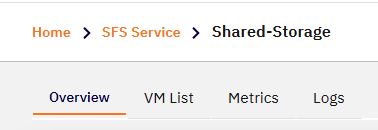
From the SFS dashboard, locate and click on the specific SFS service name you want to associate with your VM.
-
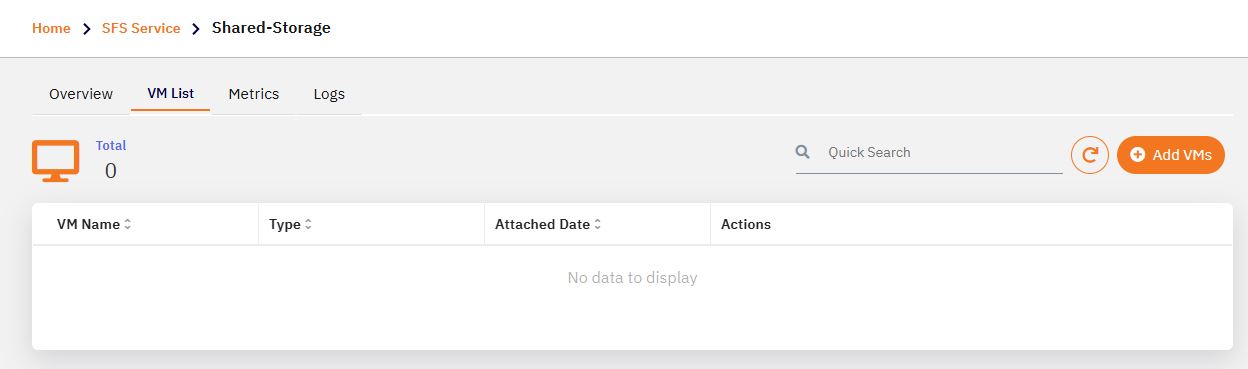
Once inside the SFS service detail page, click on the “VM List” tab.
- Click the “Add VMs” button.
-
From the pop-up, select your target Linux VM.
-
Click the “Attach” button.
-
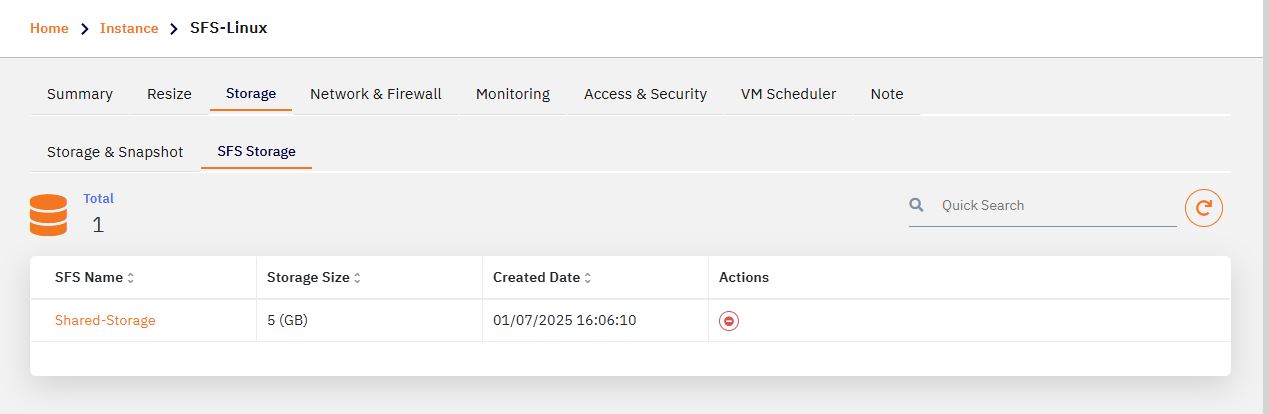
Within a few moments, the selected VM will be successfully attached to the SFS service.
-
You can verify this mapping under the Storage section of the VM details page.
3. Prepare the Linux VM
Log in to your Linux VM using an SSH client or console and perform the following commands:
-
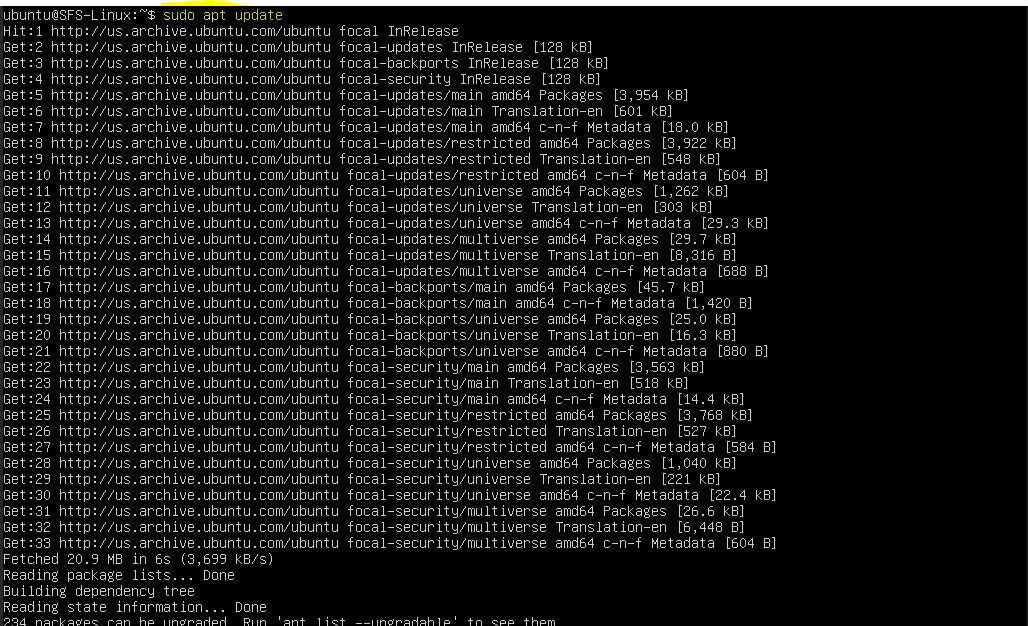
Update the package repositories:
sudo apt update
-
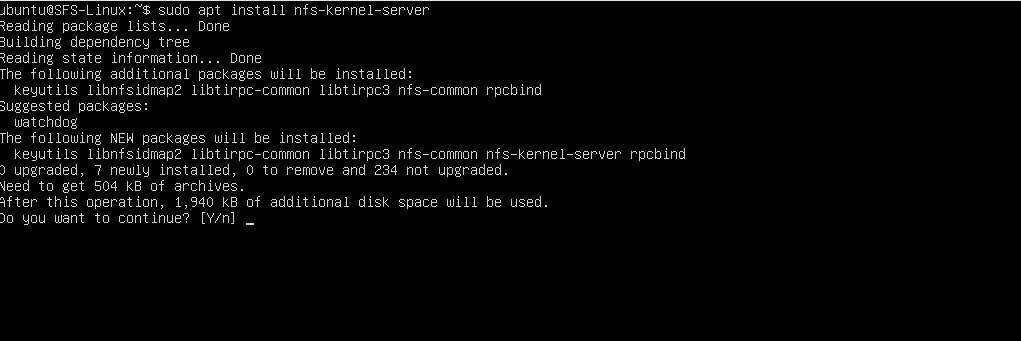
Install the NFS kernel server package:
sudo apt install nfs-common -y
4. Mount the SFS in the Linux VM
-
Return to the SFS dashboard in the portal.
-
Locate the Mount Point Information section and copy the mount command.
Example:
mount -t nfs 172.27.117.34:/export /mnt -
Paste and run the command in the Linux terminal. This will mount the SFS storage to the
/mntdirectory. -
To verify the mount:
df -hT
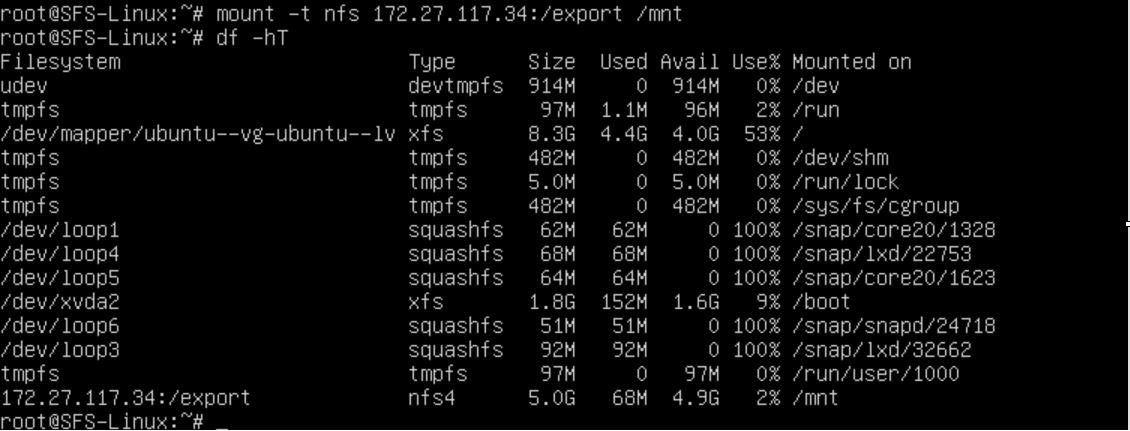
- This will list all mounted file systems and their types, including the newly mounted SFS.
5. Start Using the SFS Storage
- You can now begin storing files directly into the SFS mount point (
/mntor your specified path). This mounted storage behaves like a local directory but is backed by scalable network storage.